
DocsShip apps
Deploy steps
Run your own actions around every deploy: migrations before going live, your tests in GitHub Actions or GitLab first, webhooks, and checks that roll back a bad version.
Deploy steps are your own actions around an app’s deploys. Use them to run database migrations before the new version takes traffic, gate deploys on your test workflow, tell your status page, or check the new version and roll back if it misbehaves.
Open an app and go to its Deploy steps tab. The steps are laid out in the order they run.
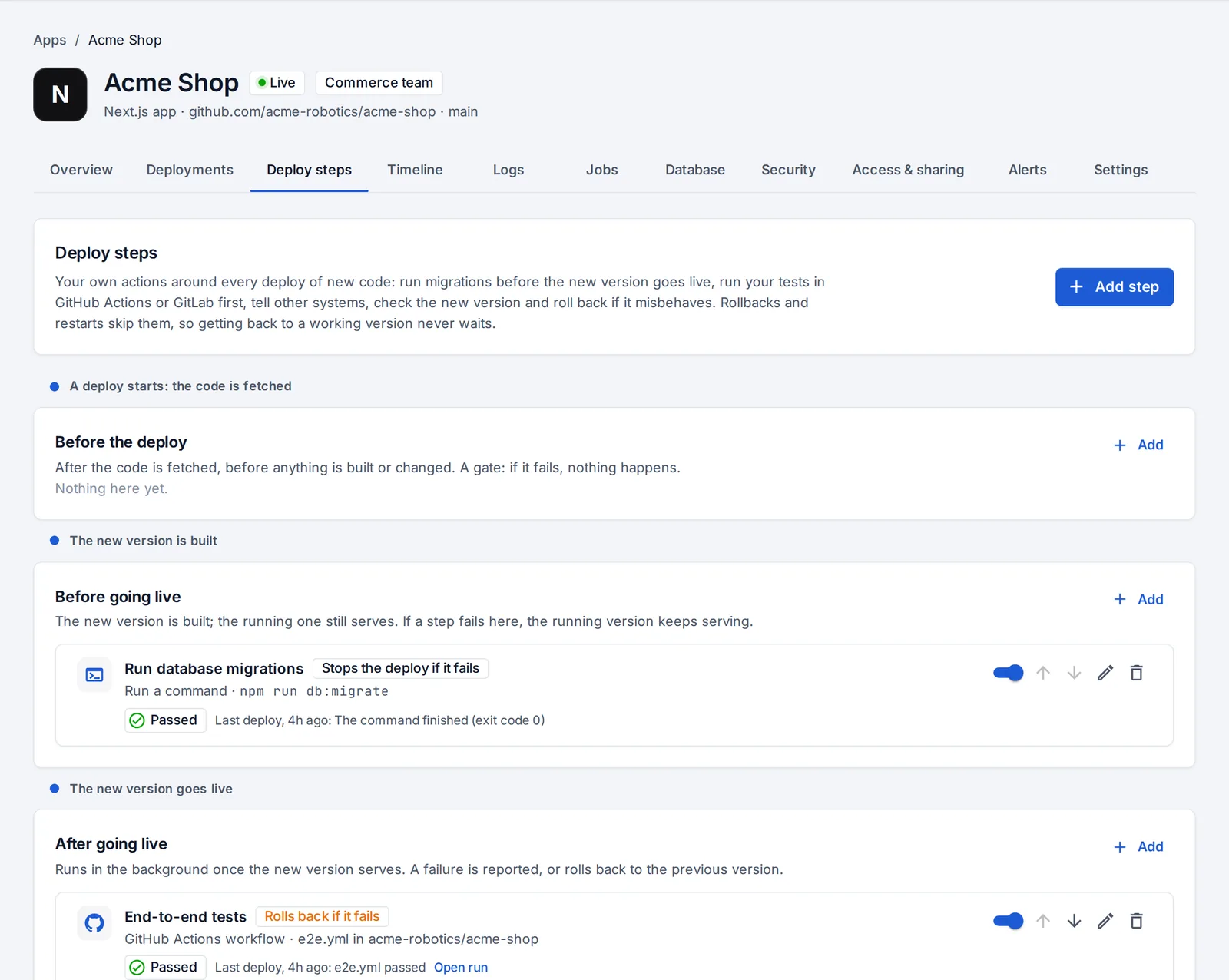
When steps run
Steps run on every deploy that brings new code: a build after a push, a manual deploy, or a promote. Rollbacks and restarts with new settings skip them, so getting back to a working version never waits on anything.
| When | What has happened | Good for | If it fails |
|---|---|---|---|
| Before the deploy | The code is fetched. Nothing is built or changed yet. | A gate: your test workflow, a check in another system | Stop the deploy, or carry on |
| Before going live | The new version is built. The running version still serves. | Database migrations, cache warm-up, telling another system a release is coming | Stop the deploy (the running version keeps serving), or carry on |
| After going live | The new version serves. Steps run in the background. | Smoke tests, end-to-end tests, notifying your status page or chat | Report it, or roll back to the previous version |
Steps in the same phase run one after another, in the order shown; use the arrows to change it. Each step can run for production, previews, or both, and can be turned off without removing it.
Add a step
- On the Deploy steps tab, press Add step.
- Pick what it does.
- Fill in its settings, choose when it runs, for which environments, and what to do if it fails.
- Press Add step. It runs from the next deploy.
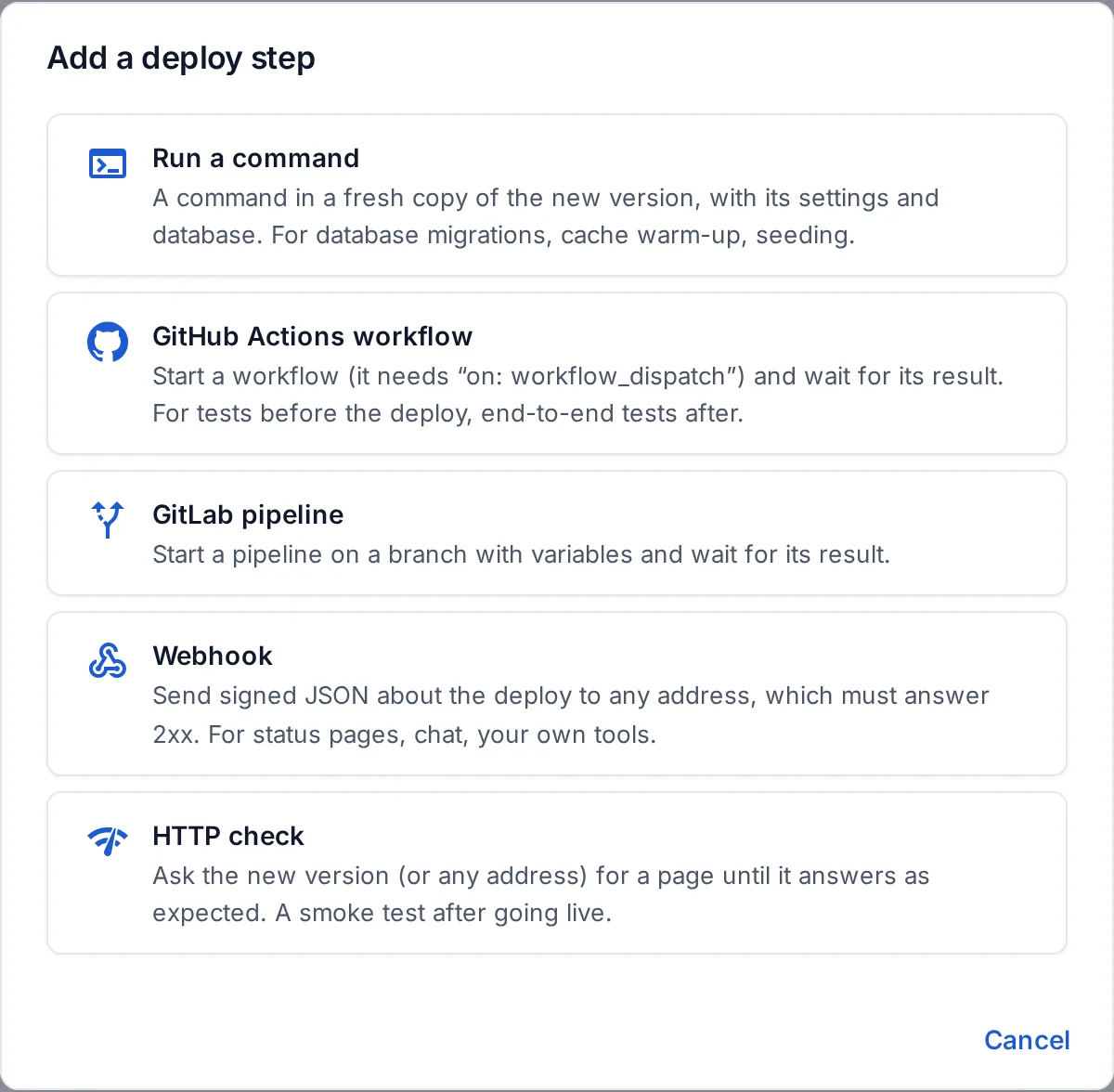
Run a command
A command in a fresh copy of the new version, with the environment’s settings and database, like npm run db:migrate or python manage.py migrate. It runs with sh; a non-zero exit code is a failure. It also gets DEPLOY_COMMIT, DEPLOY_BRANCH, DEPLOY_ENVIRONMENT, DEPLOY_URL and DEPLOY_APP. Its output is kept with the deployment, with secret values hidden.
Commands run on Docker servers, and on Kubernetes as a Job (the cluster’s service account needs to create and delete Jobs and Secrets in the namespace).
Run a GitHub Actions workflow
Starts a workflow in any repository and, by default, waits for it to finish. The deploy carries on only if it passes.
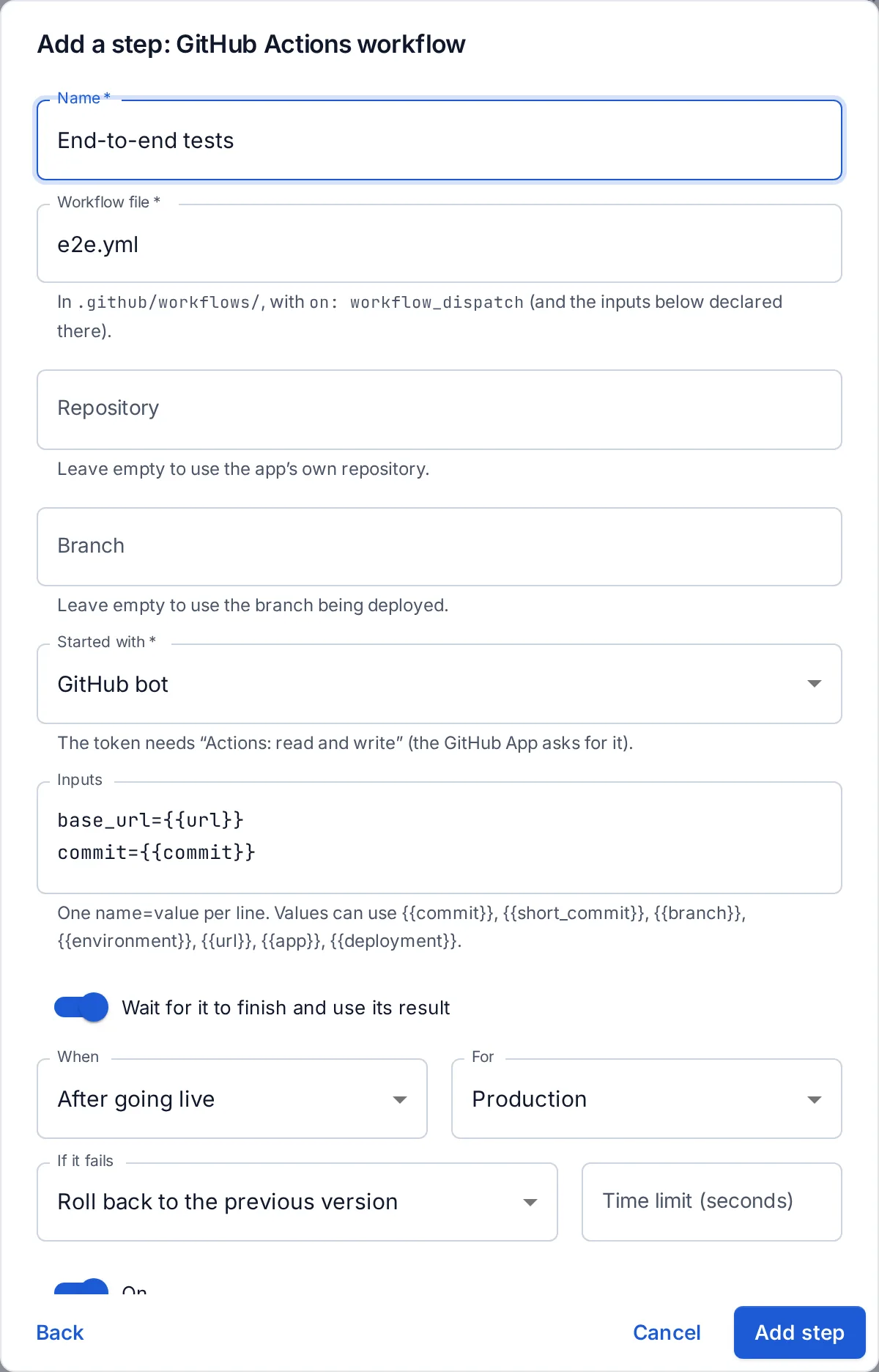
- The workflow needs a
workflow_dispatchtrigger, with the inputs you pass declared there:
on:
  workflow_dispatch:
    inputs:
      base_url:
        required: true
      commit:
required: false- Repository: leave it empty for the app’s own repository, or give another one (
owner/name), like a separate end-to-end test repository. - Branch: leave it empty to run on the branch being deployed.
- Started with: a GitHub account or the GitHub App under Connections. It needs Actions: read and write. The GitHub App asks for it; if you created the app before deploy steps existed, accept the new permission on GitHub (your organization’s settings → GitHub Apps).
- Inputs: one
name=valueper line. Values can use the placeholders below.
Run a GitLab pipeline
Starts a pipeline on a branch with variables and, by default, waits for it. Use a GitLab account with the api scope. A pipeline that ends waiting for a manual job counts as not passed.
Send a webhook
POSTs JSON about the app and the deploy to any address, which must answer with a 2xx status. Server errors and timeouts are retried twice. With a signing secret, each request carries X-DevOps-Hub-Signature: sha256=HMAC(secret, body).
{
  "event": "deploy_step",
  "step": "Tell the status page",
  "phase": "after",
  "app": {"id": "…", "name": "Acme Shop", "slug": "acme-shop"},
  "deployment": {"id": "…", "environment": "production", "branch": "main", "commit": "c22c07a…",
                 "commit_message": "New hero image", "trigger": "webhook", "url": "https://shop.example.com"},
  "sent_at": "2026-10-05T12:00:00+00:00"
}Check the new version over HTTP
Asks the new version for a page until it answers with the expected status (200 by default) and, optionally, contains some text, or the time limit runs out. A path like /health is asked of the new version directly, past its password or sign-in. A full address is fetched like any other page.
Placeholders
Workflow inputs, pipeline variables, branches, and webhook and check addresses can use:
| Placeholder | Value |
|---|---|
{{commit}} / {{short_commit}} | The commit being deployed |
{{branch}} | Its branch |
{{environment}} | production or preview:<branch> |
{{url}} | The environment’s address (after going live: the new version’s) |
{{app}} | The app’s short name |
{{deployment}} | The deployment’s id |
{{trigger}} | What started the deploy: a push, a manual deploy, a promote… |
What happened
Every deployment records what its steps did: passed, failed, timed out or not run, with what happened, a link to the workflow or pipeline run, and the output. The Deployments tab shows how each deployment’s steps went; open one to see them live, above its log.
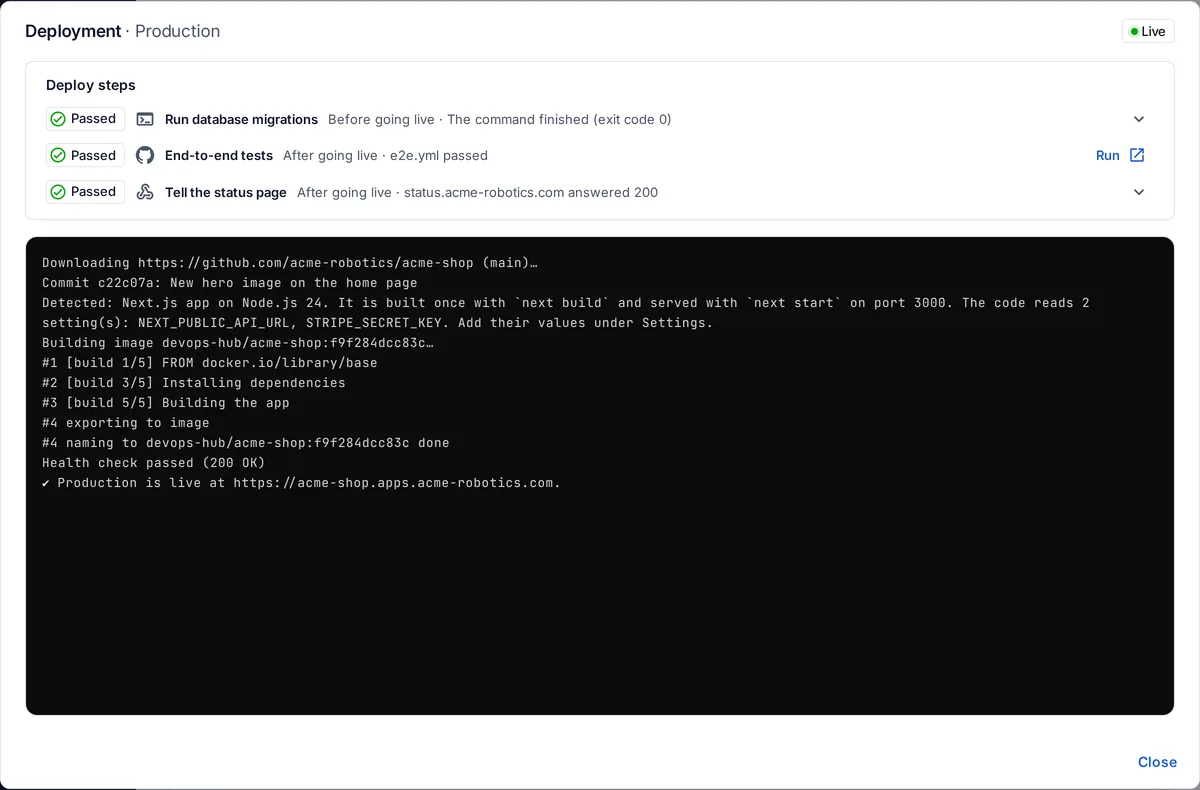
When a step stops a deploy, the deploy fails with the step’s name and reason, and the usual “deploy failed” notification goes out. When a step after going live fails, you’re notified that the version is live but its checks failed, or that it was rolled back.
From your AI assistant
Assistants can add steps too: “add a step that runs npm run db:migrate before the shop goes live”, or “run e2e.yml after every production deploy and roll back if it fails”. wait_for_deployment reports what each step did. See AI assistants.
Something unclear or missing? Tell us, or press the ? at the top of OpsNexa Online for the guide and tours inside the product.