
DocsOperate
Slack app
Alerts with buttons in Slack. Approve production deploys and fixes, investigate, roll back, and ask why an app is down in plain words.
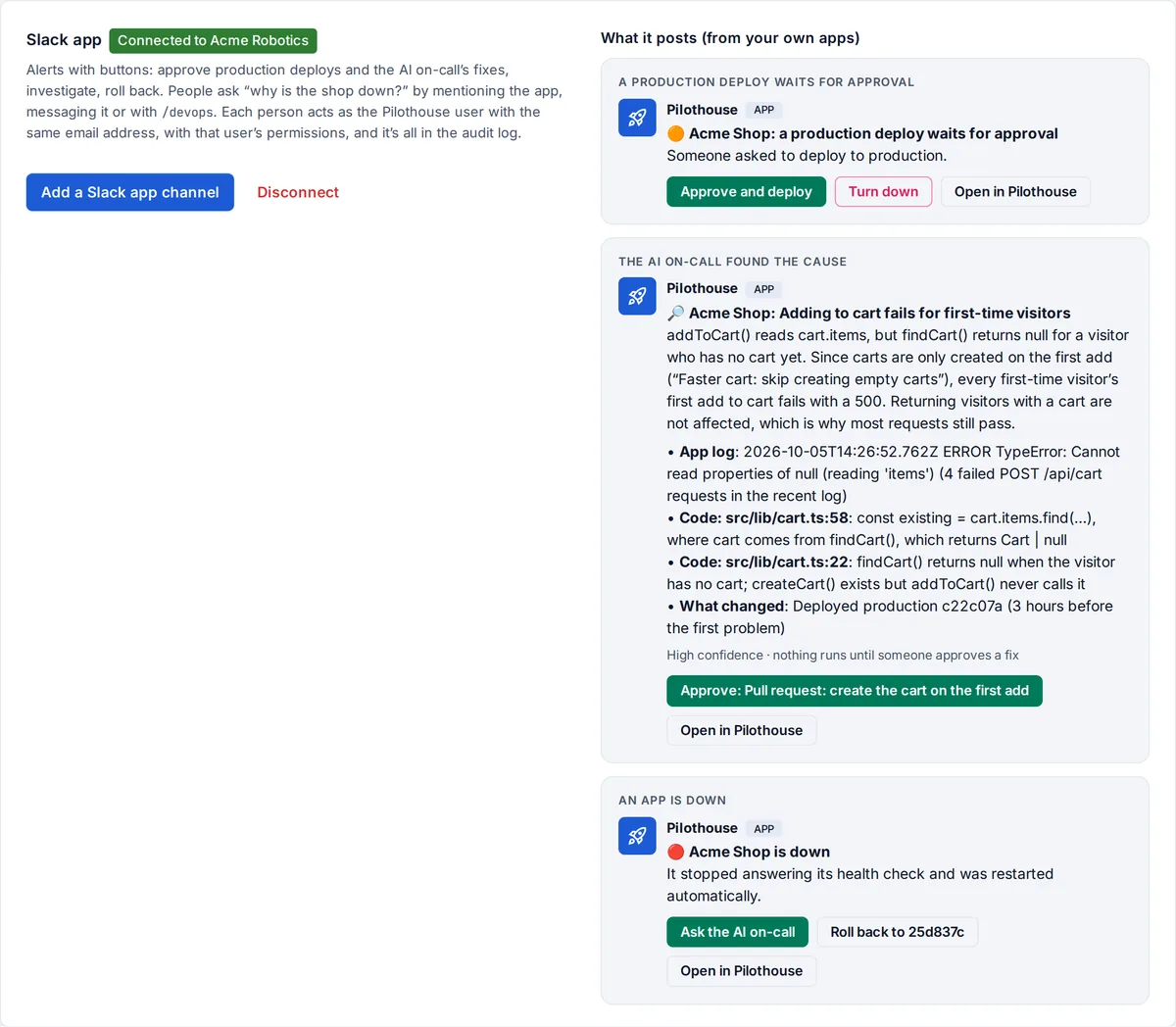
With the Slack app, alerts arrive in Slack with buttons, so your team can act without leaving the conversation:
- approve or turn down a production deploy,
- approve a fix the AI on-call proposes,
- ask the AI on-call to investigate, or roll back.
People can also ask the app in plain words: “why is the shop down?”
Connect it
You need to be an admin. Your OpsNexa Online must be reachable from the internet so Slack can call it.
- Go to Notifications and find Slack app.
- Press Create the Slack app. Slack opens with everything filled in: the app’s name, its permissions, the
/devopscommand and the addresses Slack calls. Pick your workspace and create it. - In Slack, press Install to Workspace.
- Copy two values from the app’s settings in Slack, paste them into OpsNexa Online and press Connect:
- the Bot User OAuth Token (OAuth & Permissions, it starts with
xoxb-), - the Signing Secret (Basic Information → App Credentials).
- the Bot User OAuth Token (OAuth & Permissions, it starts with
- Press Add a Slack app channel, name the channel (like
#ops-alerts) and pick its events.
Buttons in alerts
| Alert | Buttons |
|---|---|
| A production deploy waits for approval | Approve and deploy, Turn down |
| The AI on-call found the cause | Approve each proposed fix (up to three) |
| An app is down or keeps failing requests | Ask the AI on-call, Roll back to the version before |
| A deploy failed | Ask the AI on-call |
Every alert also has Open in OpsNexa Online. Buttons that change something ask “Are you sure?” first. When someone presses one, the buttons are replaced by what happened and who did it, so the channel sees that it’s handled.
A fix that needs a value, like a missing setting, is approved in OpsNexa Online, so the value never goes through Slack.
Ask in plain words
- Mention the app in a channel:
@DevOps Hub why is the shop down? - Message it directly.
- Use the command:
/devops why did the last deploy of ops dashboard fail?
It works out which app you mean from its name. The AI on-call investigates and answers in the thread within a minute or two, with the cause, the evidence and fixes to approve. /devops status lists how every app is doing.
Who can do what
A person in Slack acts as the OpsNexa Online user with the same email address, with that user’s role and team permissions:
- Testers can ask for status.
- Developers can investigate, approve fixes and roll back.
- Approving a production deploy still needs an admin or a lead of the owning team, and never the person who asked for it.
Someone whose email isn’t a OpsNexa Online user is told to ask an admin for an invite. Every button press is in the audit log, marked via Slack.
Without buttons
The Slack webhook channel kind posts plain messages through an incoming webhook, without buttons or questions. It needs no app; see Monitors and notifications.
Something unclear or missing? Tell us, or press the ? at the top of OpsNexa Online for the guide and tours inside the product.