
DocsOperate
What changed, rollbacks and postmortems
When something breaks, see the changes just before it, most likely cause first, roll back in a click, and get a postmortem drafted for you.
When an app goes down, the first question is always “what changed?” OpsNexa Online records every change and puts it next to every problem, so the answer is one page away.
Two timelines
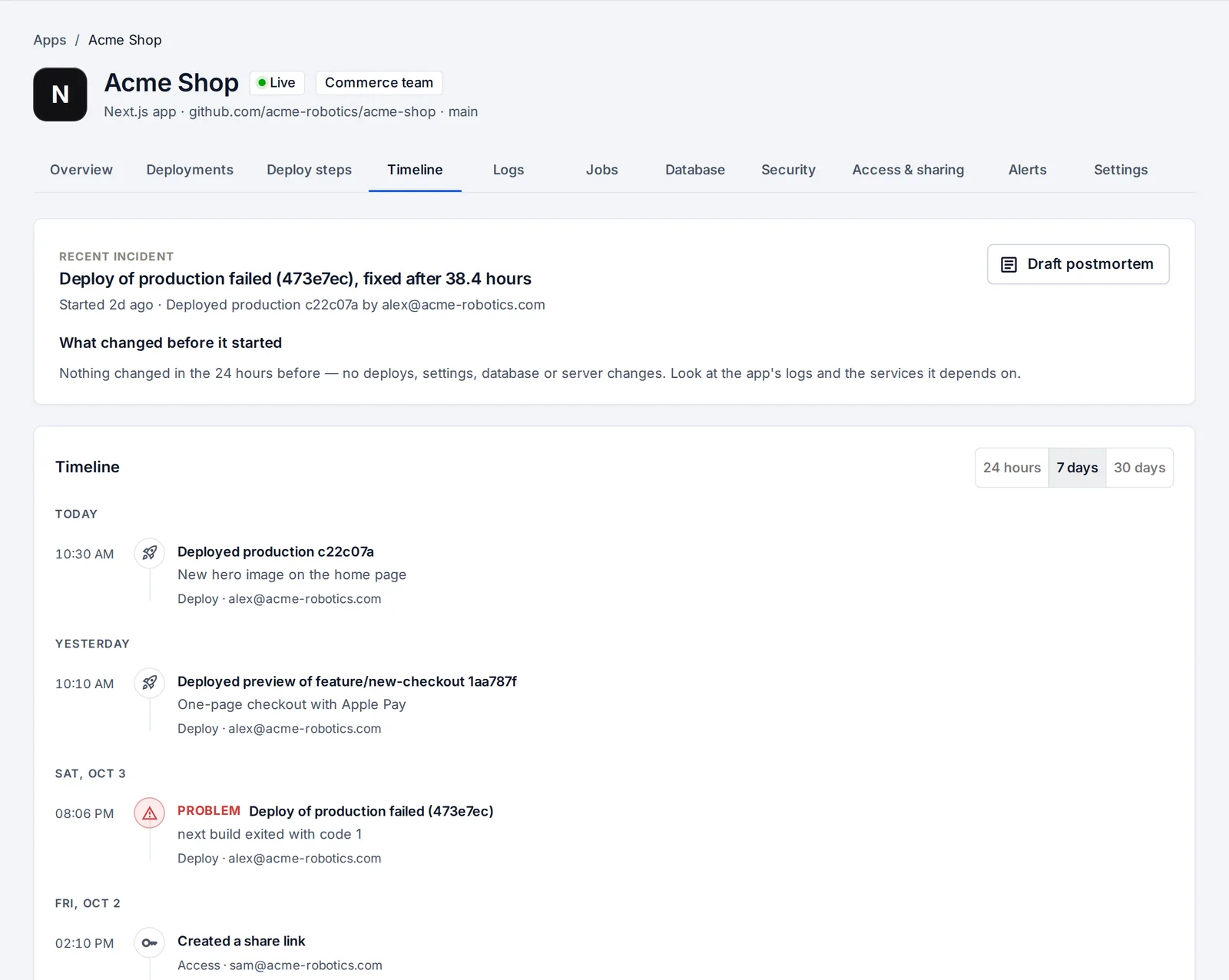
- Per app: the app’s Timeline tab.
- For the whole company: What changed in the sidebar.
They list deploys and rollbacks, setting changes (names only, never values), databases added, removed or restored, restarts, server and cluster changes, access changes and AI assistant actions. Next to them is every problem (failed deploys, apps that stopped responding or keep crashing, monitors that went down) and every recovery.
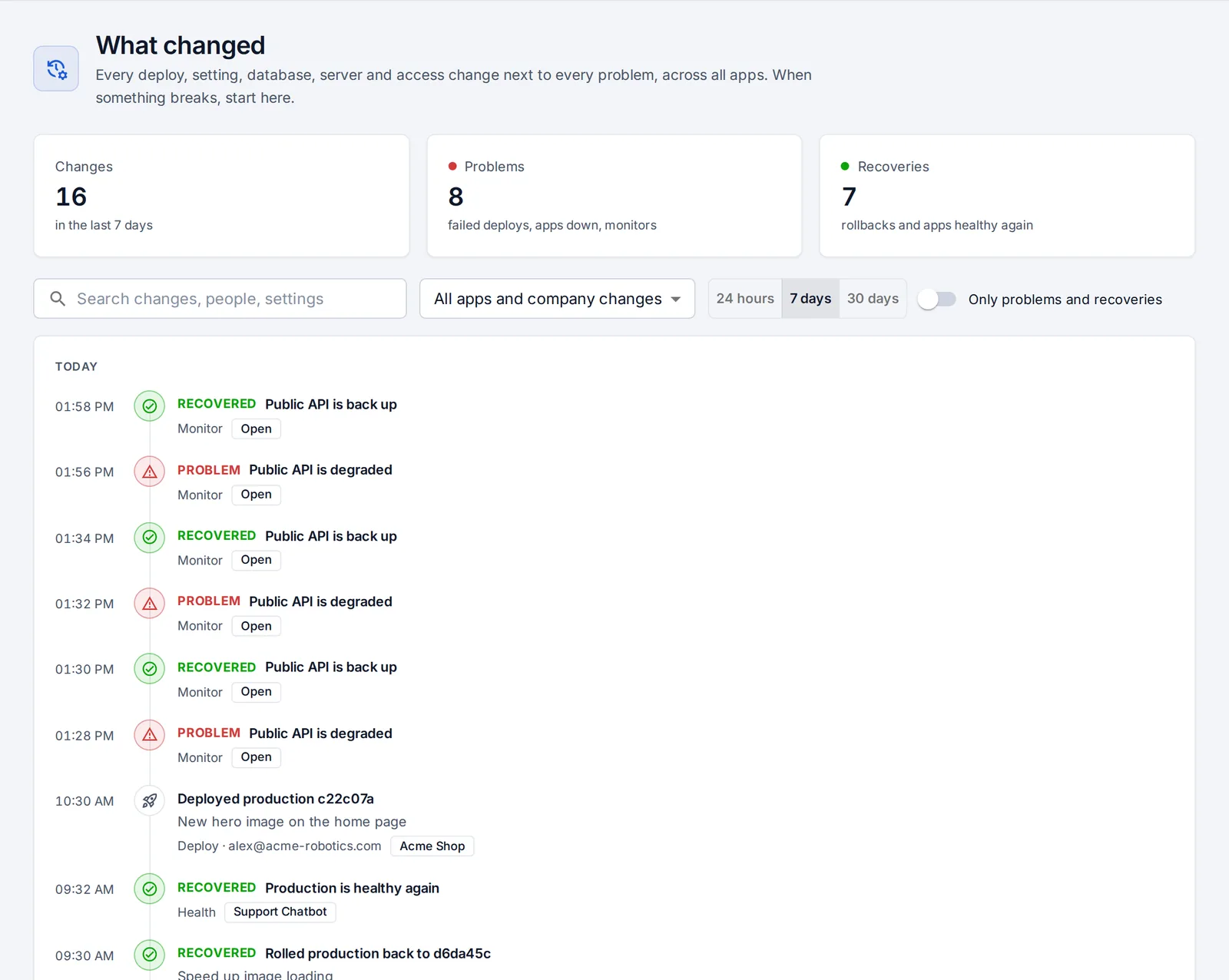
Testers and developers see app changes; company-wide access and server changes are for admins.
What changed before it started
When something is wrong, or went wrong in the last day, the app’s Overview shows What changed before it started: the problem, when it began, and the changes in the 24 hours before it, with who made each one.
They’re ranked by how likely they are to be the cause: a production deploy just before the problem ranks above a setting changed an hour earlier, which ranks above a server change.
Roll back
If the likely cause is a deploy that’s still running, Roll back puts the previous version back with one click. No rebuild, no waiting for approval.
Draft a postmortem
Draft postmortem writes a Markdown postmortem from what was recorded: a summary, how long it lasted, the likely cause, how it was fixed, the full timeline and follow-ups. Check it, edit it, then copy or download it.
Something unclear or missing? Tell us, or press the ? at the top of OpsNexa Online for the guide and tours inside the product.