
DocsTeam and account
Sign-in and security
Single sign-on with Google, Microsoft, Okta or any OpenID Connect provider, two-step sign-in, and seeing where you’re signed in.
Single sign-on
Under Users → Sign-in & security → Single sign-on, an admin connects Google Workspace, Microsoft Entra ID, Okta or any OpenID Connect provider:
- In your provider, create an app (OIDC, web) and paste in the redirect address OpsNexa Online shows.
- Back in OpsNexa Online, enter the provider’s issuer, client ID and client secret, and save.
- The sign-in page now offers your provider.
Who gets in is decided by invites and who can join: by default only people you invited can sign in.
Password sign-in can be turned off for everyone but admins, so a broken provider can never lock you out.
Two-step sign-in
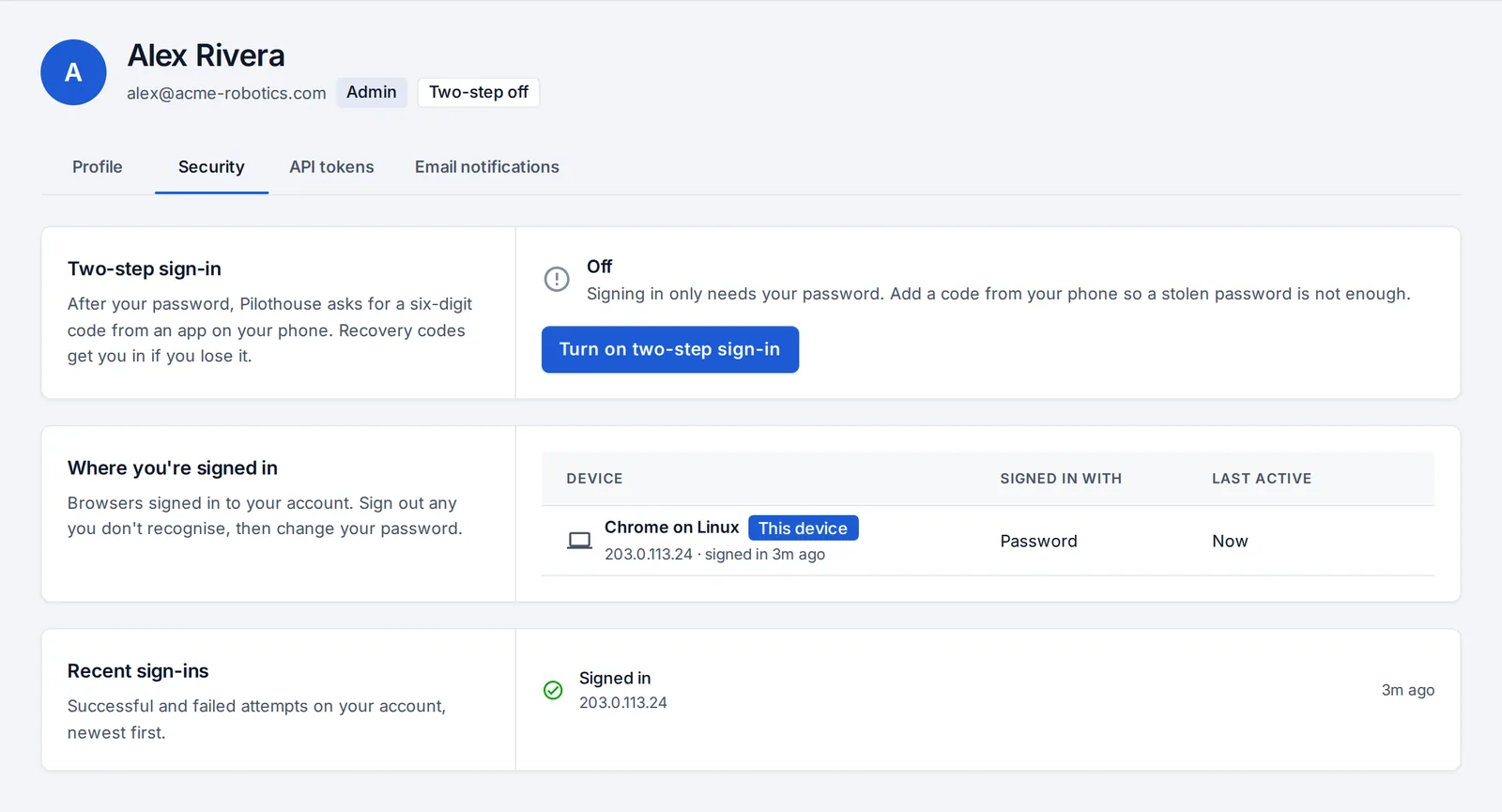
Everyone can turn on two-step sign-in under My account → Security, with any authenticator app (Google or Microsoft Authenticator, 1Password, Authy…):
- Press Turn on two-step sign-in and scan the QR code.
- Enter a code from the app to confirm.
- Save your ten one-time recovery codes somewhere safe.
You can move it to a new phone or make new recovery codes at any time.
Require it for everyone
Under Users → Sign-in & security, turn on Require two-step sign-in for everyone. Anyone who signs in with a password and hasn’t set it up is asked to before they can do anything else. Single sign-on users get their second step from their provider.
Lost phone and recovery codes? An admin resets it for that person under Users → People; they set it up again at their next sign-in.
Where you’re signed in
My account → Security also lists every browser signed in to your account (device, address, how it signed in, last active) with Sign out, and your recent sign-ins, failed ones included.
You can be emailed about security events on your account: a sign-in from a new address, password or two-step changes, a new token. See My account → Email notifications.
Something unclear or missing? Tell us, or press the ? at the top of OpsNexa Online for the guide and tours inside the product.