
DocsOperate
Monitors and notifications
Watch any address, and send what matters to Slack, Discord, email or a webhook, including a weekly summary.
Monitors
Monitors checks any address every minute: your own apps, an API, a status page. Each monitor shows whether it’s up, its response time and its last 30 checks.
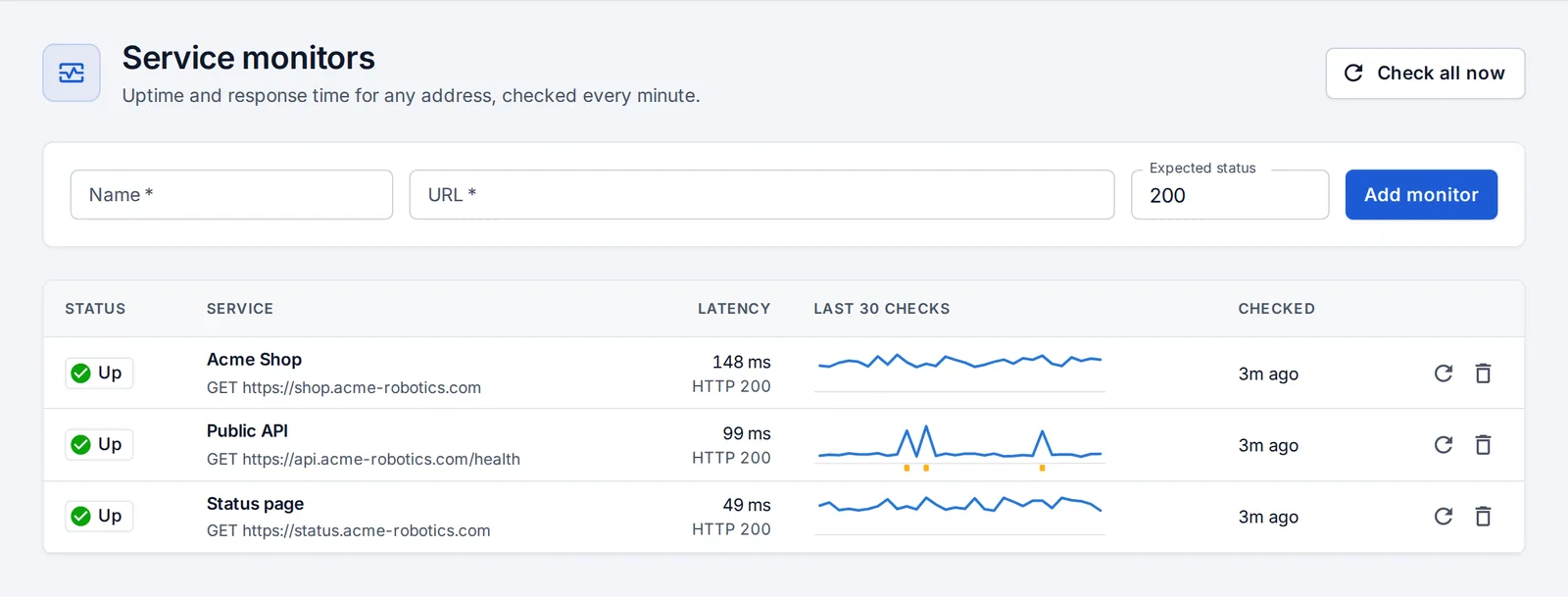
- Open Monitors.
- Enter a name, the address, and the status you expect (200 by default).
- Press Add monitor.
Monitors only notify when something changes: when it goes down, and when it comes back.
Notification channels
Admins add channels under Notifications. Each channel picks what it hears about.
- Press Add channel and pick the kind:
- Slack app: alerts with buttons to approve deploys and fixes, investigate and roll back. Connect it once; see Slack app.
- Slack webhook or Discord: paste an incoming webhook URL (Slack: Apps → Incoming Webhooks → Add to a channel). Plain messages, no buttons.
- Email: any SMTP service, set up once on the same page.
- Webhook: signed JSON for PagerDuty, Opsgenie, Zapier or your own tools. The signature is
X-DevOps-Hub-Signature: sha256=HMAC(secret, body).
- Choose who it is for: everyone, or one team (it then hears only about that team’s apps and repositories).
- Tick the events it should hear about, then press Test to send a sample.
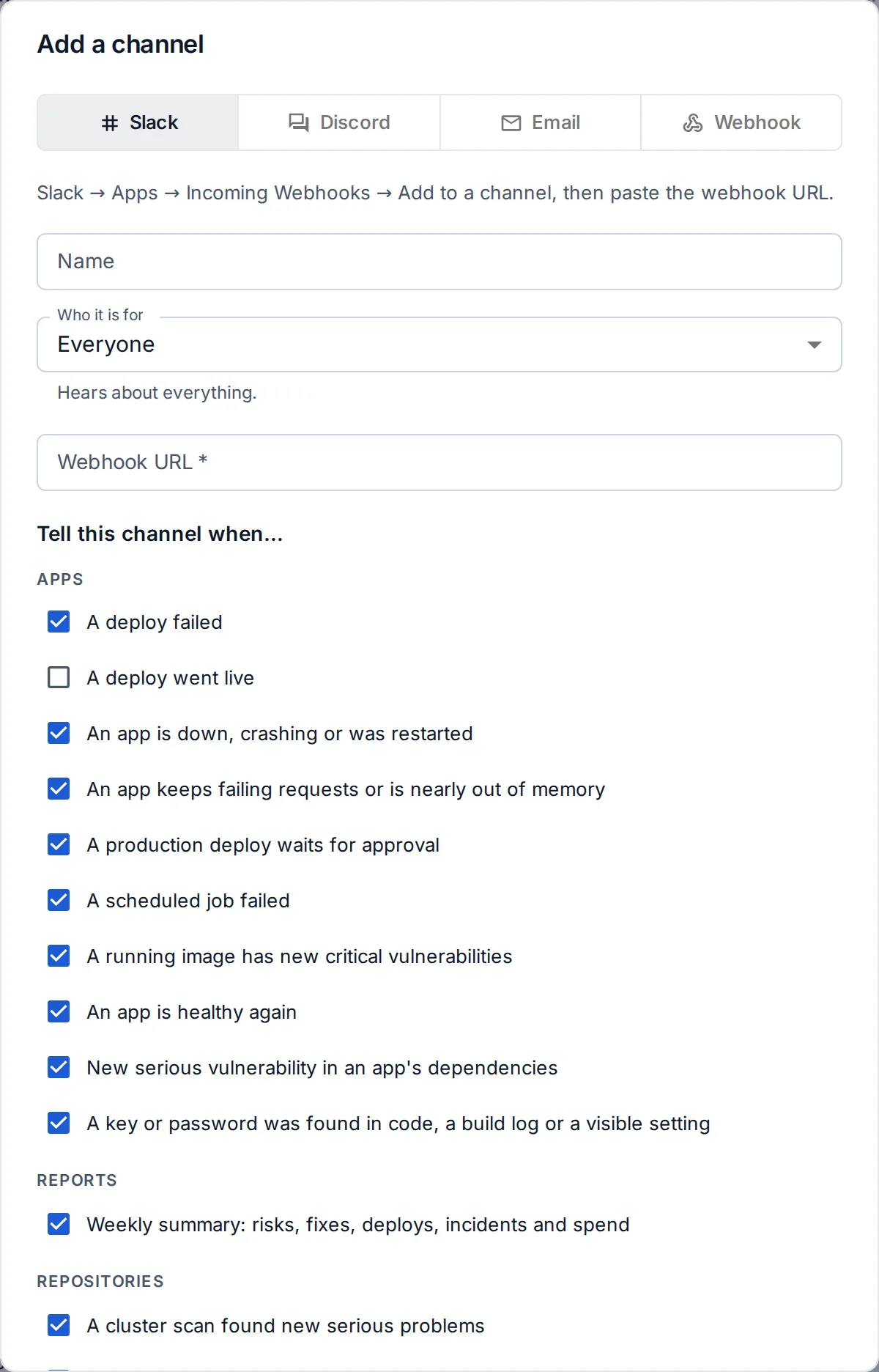
Events
Failed deploys and deploys that went live; apps that go down, crash, recover or keep failing requests; production deploys waiting for approval; failed jobs and backups; failed restore drills; new serious vulnerabilities; leaked keys; drift; new critical access findings (like a leaver who still has access); finished offboardings; cluster scans; upgrade pull requests; and the weekly summary.
Less noise
- Monitors and health checks notify only on changes.
- Repeats about the same thing are held back for ten minutes.
- A platform’s first scan only sets the baseline.
Every delivery, and every failure to deliver, is listed on the page.
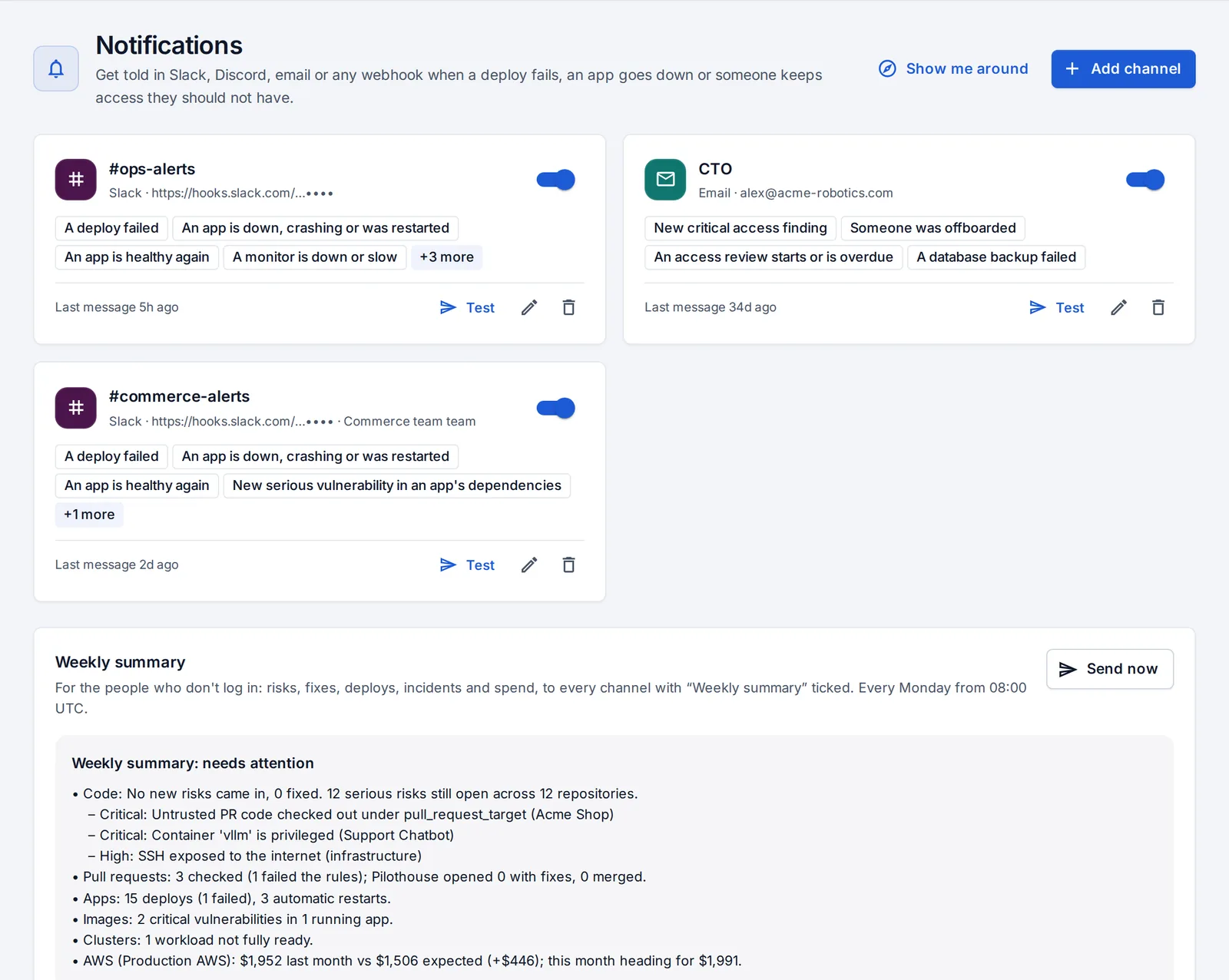
The weekly summary
Every Monday morning, channels that have it ticked get a weekly summary: new and fixed risks, pull requests, deploys and restarts, vulnerable images, clusters, and cloud spend against the estimate. The Notifications page shows it as it would go out, with Send now.
Your own emails
Everyone can also choose what’s emailed to them personally under My account → Email notifications: a deploy you started failed or went live, a production deploy waiting for your approval, any app down, a leaked key, access reviews, the weekly summary, and security alerts about your own account.
Something unclear or missing? Tell us, or press the ? at the top of OpsNexa Online for the guide and tours inside the product.